
Updated
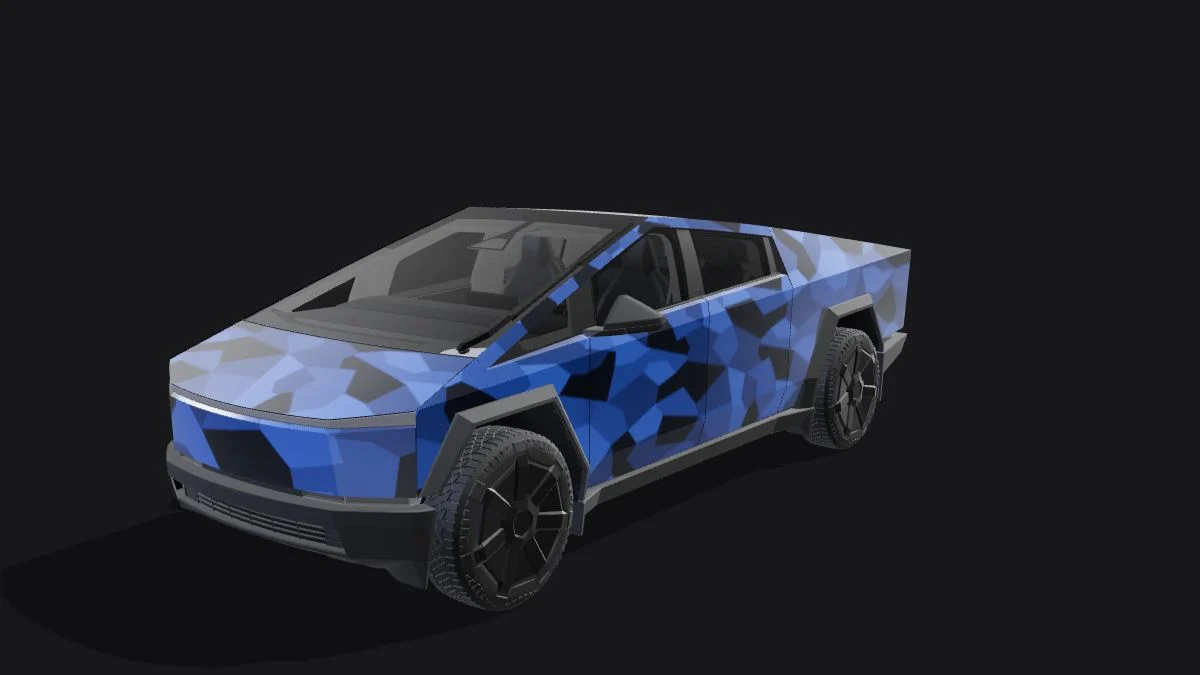
The Cybertruck template included in Tesla’s official files is 1024 × 768, unlike the square templates used by the other currently supported vehicles in our editor. Preserve that rectangle. Making the canvas square changes the panel coordinates, even when the resulting PNG looks sharp and stays under the file-size limit.
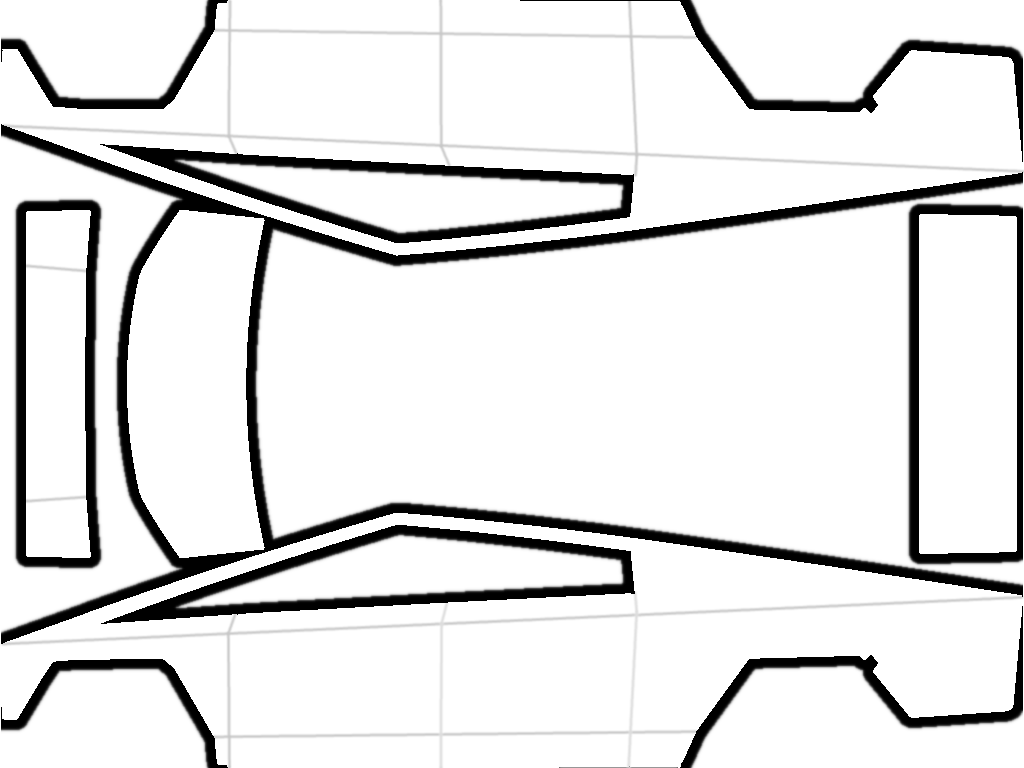 1024 × 768 · 4:3
| Action | Outcome | Preferred approach |
|---|---|---|
| Keep 1024 × 768 | Retains the native 4:3 map | Start here |
| Reduce to 768 × 576 | Keeps 4:3 while reducing detail | Consider if compression alone is insufficient |
| Stretch to 1024 × 1024 | Distorts panel coordinates | Avoid |
| Crop away unused space | Shifts the remaining layout | Keep the original canvas boundaries |
Separate artwork size from template size
Your source illustration can be square, portrait or panoramic. The final template canvas should still retain the original Cybertruck dimensions. Import the illustration as a layer and resize that layer inside the appropriate panel. Do not resize the template to fit the photograph. Keep a clean original template so an accidental crop or move can be detected without guessing where the boundaries used to be.
Start with large shapes that explain the design
Try a broad diagonal block, a restrained two-tone arrangement or one original emblem placed inside a panel. Inspect the silhouette before adding fine lines. Large regions make orientation mistakes easy to see, while dense textures can conceal them until late in the process. Treat the hood, doors and rear as related compositions. A line across the flat sheet does not establish a continuous line across the vehicle.
Check both sides rather than mirroring the whole file
Rotate the model and verify the direction of lettering and recognizable motifs on each side. If one door needs a mirrored image, modify its artwork layer only. Flipping the complete canvas also moves unrelated body regions and can break an otherwise correct arrangement. Leave room around panel boundaries; an edge-touching detail is difficult to adjust without affecting the next island.
Compress before reducing the canvas
Export a PNG and check the saved file’s byte size. Simplify unnecessary texture noise or use an appropriate PNG optimizer before reducing dimensions. If the file still exceeds the limit, our export fallback uses 768 × 576, preserving 4:3 while remaining within the published dimension range. This is an implementation choice, not a second official Cybertruck template. Recheck small lettering after any reduction.
Verify the digital result and keep the editable original
Transfer the exported texture using a route available to your vehicle and select it in Paint Shop. Compare the position of your main motif, not just whether the file appears. A successful upload does not prove that the proportions are correct. Save the editable project separately from the final PNG so you can change one panel without rebuilding everything. This workflow customizes the on-screen vehicle and supplies no physical wrap material.
Continue with your wrap
Sources and compatibility
Requirements checked against Tesla’s published instructions on the date above. Your vehicle’s available features and software remain the final compatibility check.