
Updated
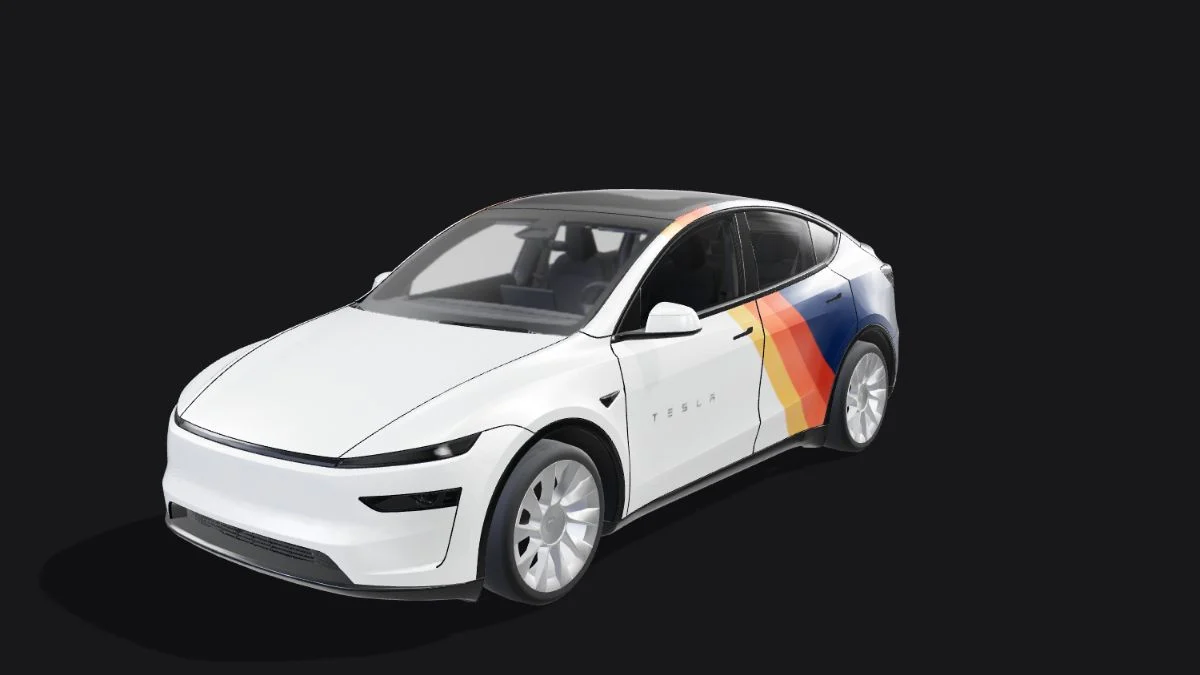
“Model Y” is not a precise enough template choice. Tesla’s official repository separates the legacy vehicle, several 2025+ variants and Model Y L. Treat “Juniper” as a starting clue, then match the complete vehicle label before downloading or editing a wrap. A visually similar car does not prove that its PNG uses the same UV coordinates.
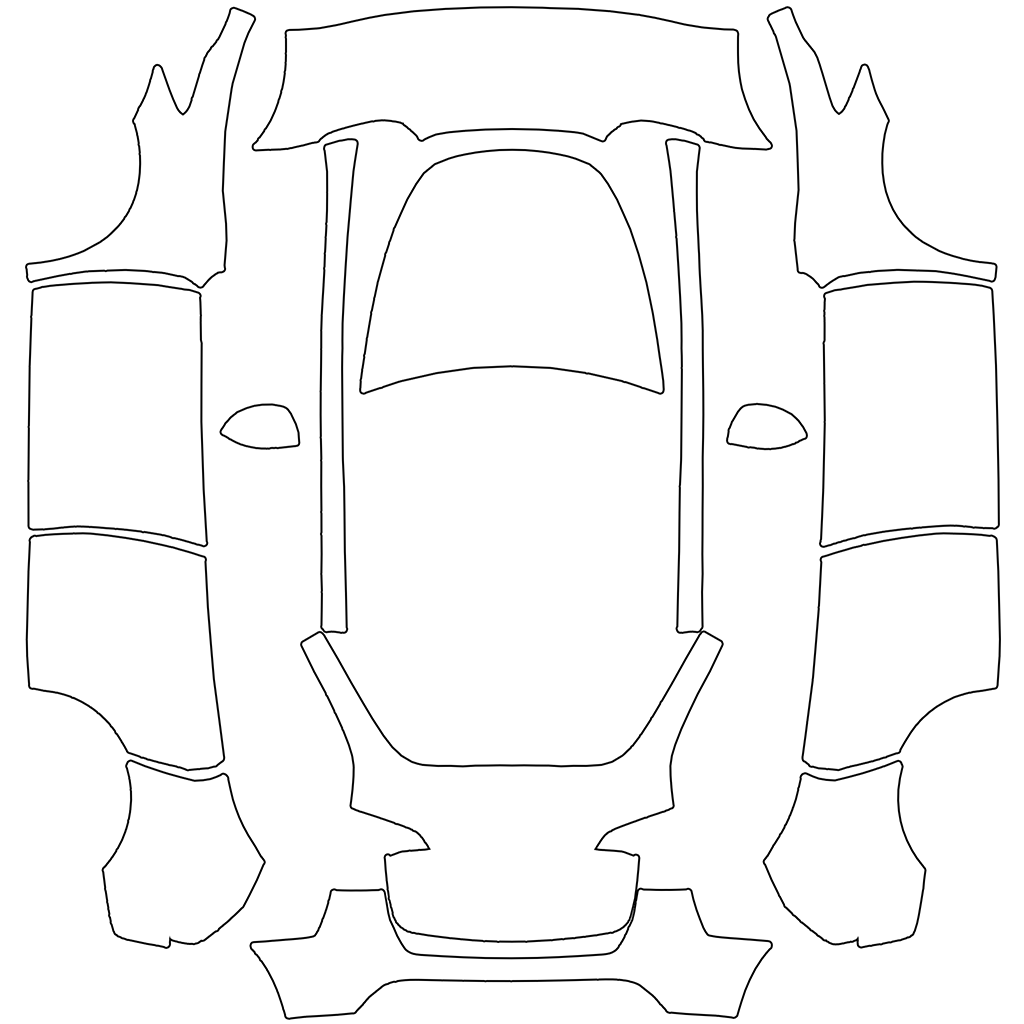 Model Y
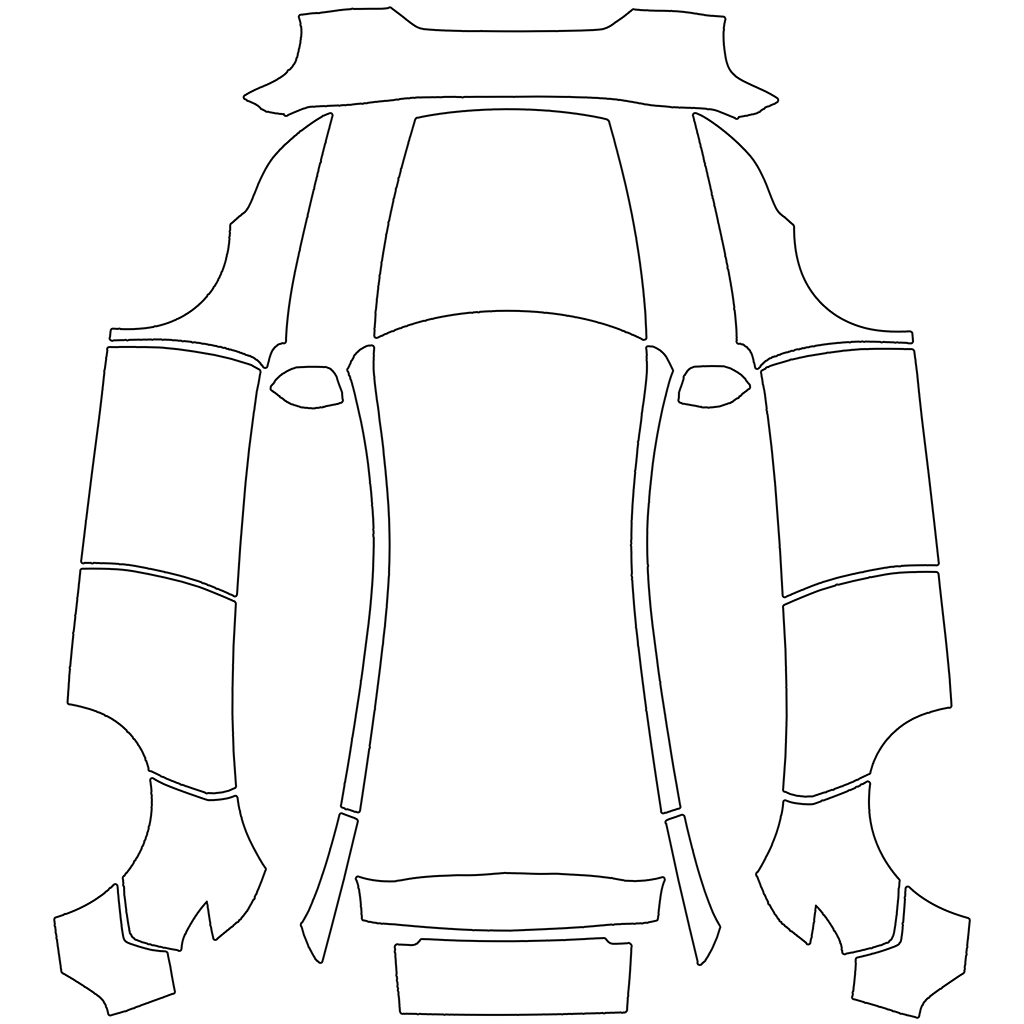 2025+ Premium
| Vehicle label | Template directory | Use this to decide |
|---|---|---|
| Model Y, legacy | modely | The legacy body layout |
| Model Y (2025+) Standard | modely-2025-base | The Standard variant, not all refreshed vehicles |
| Model Y (2025+) Premium | modely-2025-premium | The separately listed Premium variant |
| Model Y (2025+) Performance | modely-2025-performance | The separately listed Performance variant |
| Model Y L | modely-l | Its own layout |
Start with the official label rather than the nickname
Use your vehicle information and the current template catalogue together. A registration year or a community nickname can be ambiguous across markets and model changes. If you are choosing between Standard and Premium, do not assume the higher-trim template is a universal replacement. Download the two candidates only for comparison, label them clearly, and confirm the exact vehicle before building your final design.
Compare the panel shapes before adding artwork
Keep the original template unchanged and compare the hood, front and rear bumper islands and narrow side regions. You do not need to interpret every shape immediately; you need to know whether two files are the same map. If the outlines differ, moving a logo until one view looks acceptable is not a reliable conversion. The artwork needs to be placed against the correct layout.
Treat imported wraps as model-specific files
Read the vehicle label on a design before opening it. A title such as “Model Y wrap” may describe the subject without recording the exact trim. When that information is missing, ask the creator or test a reversible draft rather than assuming compatibility. Keep the original downloaded PNG and create a separately named working copy. This makes it easier to return to the source if your changes introduce a second problem.
Separate a mapping problem from an upload problem
A file that appears in Paint Shop but puts a motif on the wrong panel needs a layout check. A file that never appears needs a format, filename, transfer or feature-availability check first. Repeatedly compressing a misaligned image will not move its pixels to the right panel. Likewise, repainting every panel is unnecessary if the real issue is a renamed JPEG or an inaccessible upload file.
Validate a small change before investing in a full wrap
Place one obvious marker on a single body panel in the browser editor, inspect its position in 3D, then export a draft for the matching car. Check the front, rear and both sides. Once the mapping is confirmed, remove the marker and build the full composition. The website preview is a placement aid; the vehicle remains the final check for its available software and display behavior.
Continue with your wrap
Sources and compatibility
Requirements checked against Tesla’s published instructions on the date above. Your vehicle’s available features and software remain the final compatibility check.