
Updated
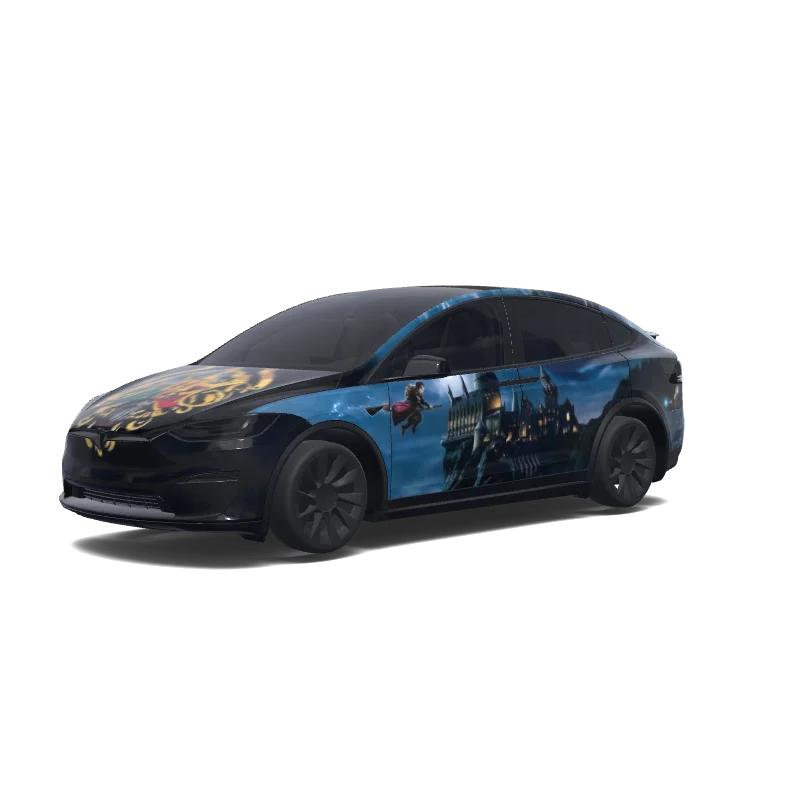
“Model X wrap” can refer to physical vinyl or a digital Tesla Paint Shop design. This guide is for the digital version: Tesla lists one Model X (2021+) custom-wrap template, which you should use as a design starting point only when its label matches your vehicle. Keep important graphics clear of uncertain panel joins, inspect the Falcon Wing door area in the closed-car preview, and confirm feature availability for the actual car. The PNG does not wrap or protect the physical vehicle.
Community designs to compare
Compare these credited community vehicle previews for color and placement. Each case lists its vehicle version; preview-only concepts are labeled separately.
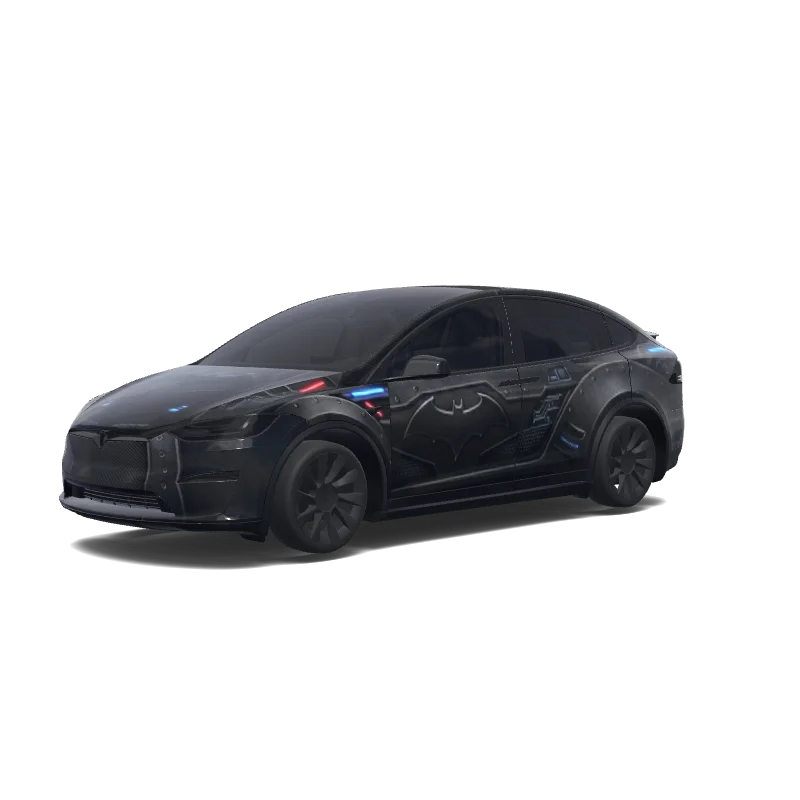
A dark body carries one large door emblem and small red-blue details. The closed-car render helps compare contrast, not test moving Falcon Wing doors.
View design details →A Model X wrap workflow
- Verify the Model X entry. Start only if Model X (2021+) is the listed template that matches your design target; check vehicle feature availability separately.
- Keep the flat template unchanged. Create artwork on layers and preserve the original UV regions.
- Test a stripe across the intended joins. Inspect it in the closed-car 3D preview before building the full scene.
- Place focal details within one mapped region. Keep text and faces clear of door joins unless you have checked the split deliberately.
- Inspect every side and check the exported file. Review the hood, both sides, and rear, then run the PNG checker and follow the current install instructions.
| Design element | What to test in the template and preview | Safer adjustment |
|---|---|---|
| A stripe crossing the side | Check whether the mapped pieces align when shown on the closed vehicle. | Make the panel transition intentional; shift or restart the stripe if it looks broken. |
| A wordmark or character face | Check whether a seam splits a letter, face, or small focal detail. | Keep the complete element inside one panel and use adjacent panels for background color. |
| A detailed scene across several panels | Check orientation and scale on each mapped region rather than judging only the flat sheet. | Break the scene into panel-aware pieces and inspect the front, both sides, and rear. |
Use the Model X (2021+) file only when its label fits
Tesla’s public repository lists a Model X (2021+) template and examples. The local template library uses the vehicle ID modelx-2021. The repository’s single listed Model X entry is useful evidence about the available design file; it is not a year-by-year vehicle software compatibility chart. If your vehicle’s details or Paint Shop availability do not match what you see in the manual, confirm before relying on a downloaded PNG.
Design around the Model X side-panel joins
The flat Model X template separates the vehicle into multiple mapped regions. Do not assume that two neighboring shapes on the PNG sit next to each other in the way they appear on the canvas. Begin with one temporary stripe across the intended path and inspect the full-size car in 3D. Then decide whether the graphic should continue across the join, stop cleanly at it, or change color there. This catches placement errors before you invest time in detailed artwork.
Keep the important detail on one panel near Falcon Wing doors
A digital preview shows the wrap on the vehicle pose it renders; it does not demonstrate how a physical film behaves while the Falcon Wing doors move. For a digital layout, place a word, number, or character face inside one clearly mapped region instead of centering it over a door join. If you want a line to appear continuous across a seam, check it in 3D and accept that the flat texture and preview cannot certify real-world installation or door movement.
Use the large theme and small details at different scales
Choose one large color field, stripe, or scene as the first-read element. Use the remaining mapped panels for a limited number of supporting marks. This helps a wrap remain recognizable when the vehicle is viewed at normal preview distance. On a character or motorsport concept, keep the face, number, or sponsor-style label large enough to inspect in the 3D view, and remove details that vanish when you zoom out. The exact result depends on the artwork and preview; this is a design check, not a display-size guarantee.
Check mapped regions before exporting
Keep the source template intact and move artwork layers, not the UV layout. Rotate the car to inspect the hood, both sides, and rear; look for mirrored text, abrupt stripe endings, and focal details split across panel borders. If a motif appears in an unexpected place, compare the selected vehicle entry first, then adjust its location. Changing the canvas dimensions or renaming a file cannot correct a mismatch between templates.
Check the real PNG and the current transfer path
Tesla’s custom-wrap repository currently specifies PNG files from 512 × 512 through 1024 × 1024 pixels, no more than 1 MB, and a filename of up to 30 characters using accepted characters. Export from the template and use the PNG checker to catch file-format, dimensions, size, or filename problems. Then consult the Model X manual and current Tesla instructions for the app or USB transfer method available to your vehicle. A valid file and a successful browser preview do not guarantee that every Model X can load it.
Know when the result you want is a physical wrap
Paint Shop changes a digital appearance on the vehicle’s screen. It does not change the actual exterior, add paint protection, or supply an installer-ready vinyl pattern. If you are comparing real vinyl shops, ask them to inspect the exact Model X and explain panel preparation, seams, and door movement for the proposed material. This digital-design guide does not estimate physical material or installation prices.
Choose a Model X reference by its focal area
Compare two community examples before starting. Castle scene on Model X puts a large blue scene along the side and a separate emblem at the front, so inspect how each part meets the door seams rather than expecting one uninterrupted picture. Dark bat-themed Model X uses a dark body, one large door emblem and a few red-blue details; check whether that simpler contrast still reads at the ordinary 3D preview size. Choose a multi-region scene if you want the side and front to carry separate parts of one theme; choose a single emblem if you want one clear focal point. These are composition examples, not a popularity ranking. Both are Model X (2021+) references, and the closed-car render does not show Falcon Wing door movement.
Questions before you export
Is there a separate Model X Plaid template in Tesla’s public wrap catalog?
The repository reviewed for this guide lists Model X (2021+) as its Model X template entry. Do not infer from that label alone that a specific car’s software accepts Paint Shop wraps; check the vehicle’s current instructions.
Can I use a Model S wrap PNG on Model X?
No, do not assume cross-model compatibility. Use the matching Model X template and reposition any reused artwork while checking it in 3D.
Will the preview show what happens when the Falcon Wing doors open?
The editor preview is for checking the design on the rendered vehicle pose. It does not establish how a physical wrap behaves as a door moves or certify an installation. Keep important details inside one panel and ask an installer about real vinyl work.
Continue with your wrap
Sources and compatibility
File requirements and template selections are checked against the sources below. Original palettes and layout exercises are design suggestions, not official Tesla designs or vehicle test results. Your vehicle’s features and software determine final compatibility.