
Updated
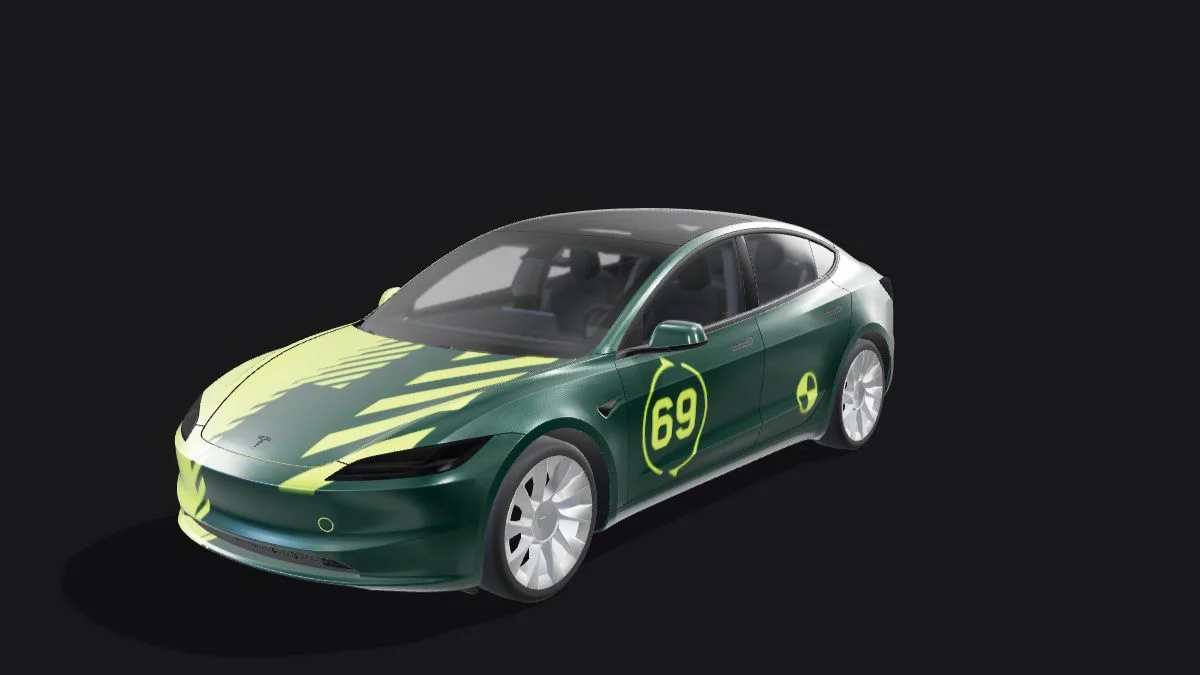
A checkerboard is often an editor’s way of showing transparency, but it can also be ordinary pixels inside an image. PNG supports an alpha channel; choosing the file extension alone does not make a background transparent. For a Tesla wrap, inspect the actual export and preserve the artwork inside the correct panel boundaries.
| What you see | Possible cause | Useful check |
|---|---|---|
| Checkerboard remains on every viewer background | The pattern may be baked into the image | Place it over a plain dark and light background |
| Solid rectangle around the artwork | Flattened background or opaque layer | Inspect layer visibility and the final alpha channel |
| White parts disappear | A global white-removal operation | Restore artwork, then use the model-specific panel mask |
| Colored edge fringes | Partially transparent edge pixels | Inspect against two contrasting backgrounds |
Transparency is a compositing choice, not a separate upload rule
Tesla’s published image requirements list PNG format, dimensions, file size, naming and file count; they do not separately require a transparent background. The checks here help you prepare clean artwork and preserve alpha when you want it. Do not assume that transparent pixels inside a painted panel will reproduce the car’s real paint color. Test that behavior on your vehicle instead of treating it as a guaranteed feature.
Check the exported file, not only the editor view
Save a test PNG and open it in an application that can place the image over another color. Try both a dark and a light background. If the same checker squares remain visible inside the artwork, they are probably part of the image rather than the viewer’s transparency display. A thumbnail on a white page is not enough evidence either way. Keep the original file untouched while testing a working copy.
Use the template mask instead of deleting one color
A white flower, a white stripe and an unwanted white background may have identical color values. A global operation that removes every white pixel cannot distinguish their purpose. Use the exact vehicle template to define which regions are body panels, then mask the artwork to that layout. Remove an unwanted background within an individual imported layer separately. This keeps the panel boundary decision independent from the subject’s colors.
Treat an AI-generated backdrop as something to inspect
A prompt requesting “transparent background” is a request to a generator, not proof that the output file contains the alpha values you need. The service may return a flat composition that still requires template masking. In Tesla × Wrap, review the completed PNG after the generation and compositing process. If a reference subject has a boxed background inside a panel, adjust that layer or revise the generation rather than assuming export alone will erase it.
Keep soft edges without a visible matte
Transparency can be partial at the edge of a shape. A motif cut out from a pale background may retain pale fringe pixels that become obvious over a dark panel. Inspect the edge before shrinking the image. If a selection tool offers edge cleanup, apply it to the imported subject and review both background colors again. Do not erase an entire halo of pixels blindly; it can remove thin lines and small details you meant to keep.
Preserve alpha through conversion and sharing
JPEG does not carry the alpha transparency used by PNG. Saving a transparent design as JPEG and renaming it afterward cannot recover the missing transparency. Keep the original PNG when transferring it, and choose a file or document sharing route rather than one that silently recompresses images. After any conversion, repeat the background check and verify dimensions and file size. A transparent PNG can still fail another Paint Shop requirement.
Continue with your wrap
Sources and compatibility
Requirements checked against Tesla’s published instructions on the date above. Your vehicle’s available features and software remain the final compatibility check.