
Updated
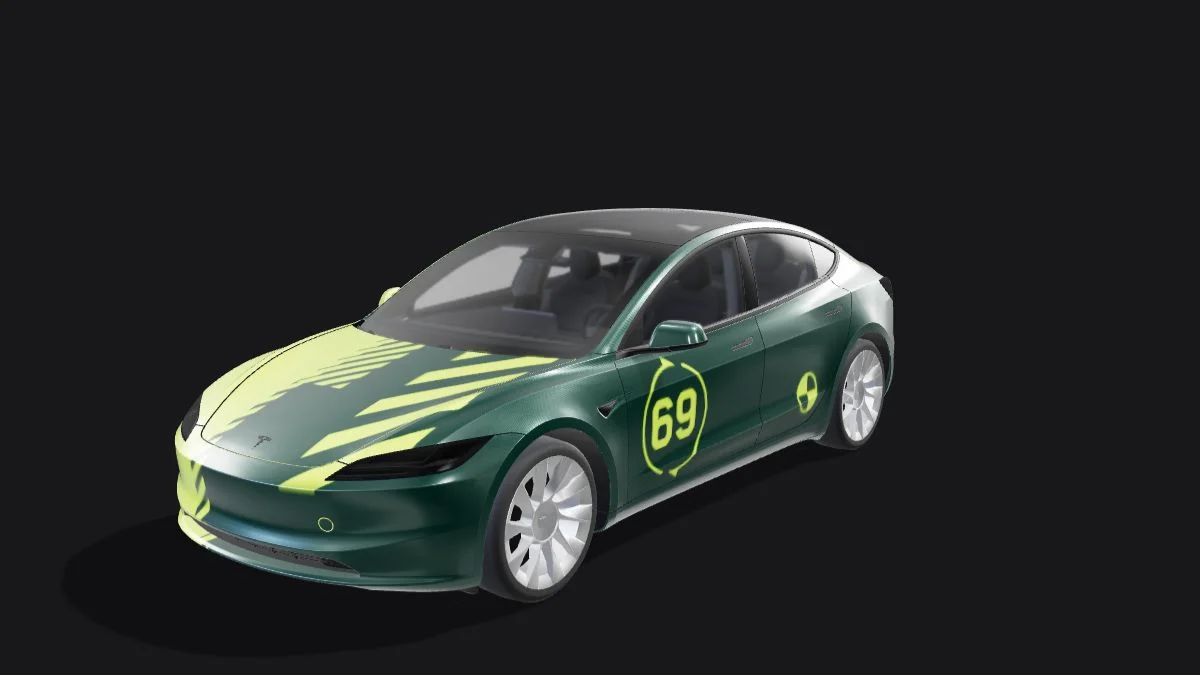
If Paint Shop lists your PNG but the hood graphic appears on a door, the logo is split across panels, or one side faces backward, the problem is usually artwork placement or a mismatched UV layout—not a missing upload. Work from the exact Tesla model, year and trim, inspect the affected body region in 3D, and change one element at a time. This is a digital visualization guide, not physical vinyl installation advice.
| What you see | Likely check | Next action |
|---|---|---|
| Artwork appears on the wrong door or bumper | Exact model, year and trim | Start from the correct official UV template |
| Text is backward on only one panel | Orientation of that UV island | Move or re-orient that single design layer in the editor |
| Logo is cut at a seam | Placement across adjacent body panels | Reposition the logo and inspect both sides in 3D |
| All panels shift after a resize | Original canvas dimensions and aspect ratio | Restore the matching template instead of stretching the PNG |
| File never appears in Paint Shop | Actual PNG rules and transfer | Use the missing-wrap troubleshooting guide instead |
First distinguish a missing file from a wrong-looking wrap
If your car does not list the design at all, troubleshoot the PNG format, 1 MB limit, filename and app or USB transfer first. If the design appears but panels are misplaced, the file is reaching Paint Shop: changing the USB folder will not realign its texture coordinates. Record which surface looks wrong and keep the original file for comparison.
Match the precise version, not just Model 3 or Model Y
Tesla publishes separate custom-wrap layouts for original Model 3, refreshed 2024+ Standard/Premium, and refreshed Performance. Model Y also separates the original body from 2025+ Standard, Premium, Performance and Model Y L. A square PNG for one of those versions may look like a valid image yet wrap onto the wrong body panels on another. The template catalogue links to the actual vehicle files.
Compare a simple stripe before rebuilding the whole design
Open the correct template in the free editor. Put a small contrasting stripe on a single hood or door region and preview the vehicle from the front, both sides and rear. If the stripe lands where expected, add one logo or graphic at a time. If it moves to the wrong panel, confirm your selected variant again. This isolates placement errors faster than changing the entire image at once.
Why mirror effects and seams need local adjustments
A UV map unfolds different three-dimensional surfaces into separate flat islands. Two neighboring doors on the car may have differently oriented regions on the PNG. A logo crossing a seam can be cut or read backward even when a solid color looks fine. Keep text away from seams and review one surface at a time. Rotating the entire canvas fixes neither a local mirror nor a mismatched model.
Keep original proportions, especially for Cybertruck
This site bundles a 1024 × 768 Cybertruck UV template, while its listed passenger-car templates are 1024 × 1024. Do not force the rectangular truck texture into a square or crop away borders to make it match another car. Export from the matching editor, then check the actual file size, dimensions and format using the free PNG checker. Those file checks do not verify the semantic panel mapping.
Export, transfer and compare on the real screen
Once the browser preview is aligned, export the flat PNG—not a screenshot of the 3D vehicle. Save the original file, then transfer it through the supported Tesla app or USB Wraps-folder workflow. Select it in Toybox → Paint Shop → Wraps and compare the same hood, door and rear areas. Your vehicle software and lighting can affect the appearance; do not assume a browser image guarantees identical rendering.
Questions before you export
Why does my Tesla wrap PNG look scrambled?
Often the design uses a UV template for a different vehicle variant or the image has been resized or cropped. Compare the exact model and trim, restore the template dimensions, then inspect a single stripe in 3D.
Can I use a 2020–2024 Model Y PNG on Juniper?
Not as a drop-in file. The original and refreshed Model Y layouts are separate. Recreate the artwork on the correct 2025+ Standard, Premium, Performance or Model Y L template.
Can I fix reversed door text by flipping the whole PNG?
No. Other UV regions may already be correctly oriented. Adjust the text layer for the affected panel and check the result from both sides in the editor.
Does passing a PNG checker guarantee correct panel alignment?
No. It checks file properties, not which vehicle texture layout the artwork was designed against. Use the exact template and a 3D preview as separate checks.
Continue with your wrap
Sources and compatibility
File requirements and template selections are checked against the sources below. Original palettes and layout exercises are design suggestions, not official Tesla designs or vehicle test results. Your vehicle’s features and software determine final compatibility.