
Updated
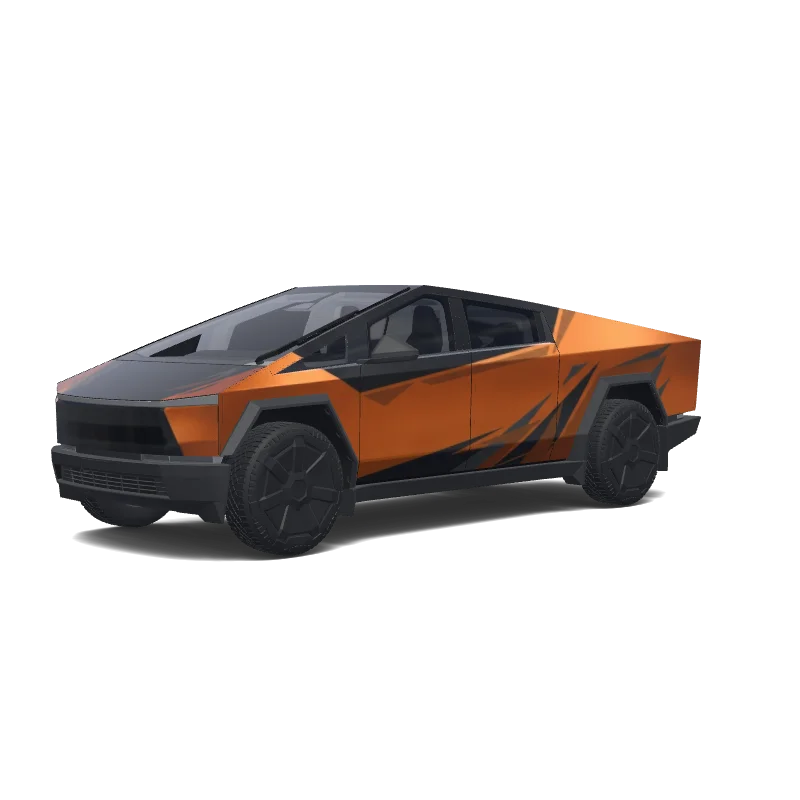
Start by choosing what you want to read at a glance: a restrained color block, a textured theme, or a high-contrast panel graphic. The community examples below show those three directions on Cybertruck previews. They are digital designs, not photos of physical vinyl wraps or proof of an in-car result. Use the examples to pick a composition, then inspect your own version in the Cybertruck editor.
Community designs to compare
Compare these credited community vehicle previews for color and placement. Each case lists its vehicle version; preview-only concepts are labeled separately.
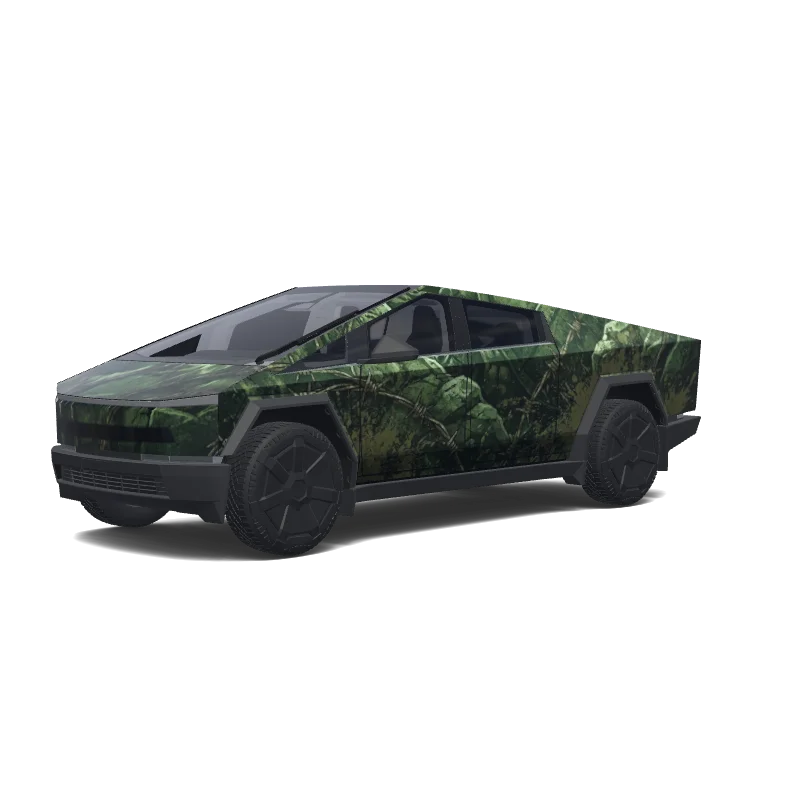
A dark green body carries a rocky, woodland-like texture. Preview only: the stored source is square and exceeds 1 MB, so it is not offered as a ready-to-import Cybertruck PNG.
Inspiration preview only · source PNG does not match the Cybertruck template dimensionsStart on the matching blank template →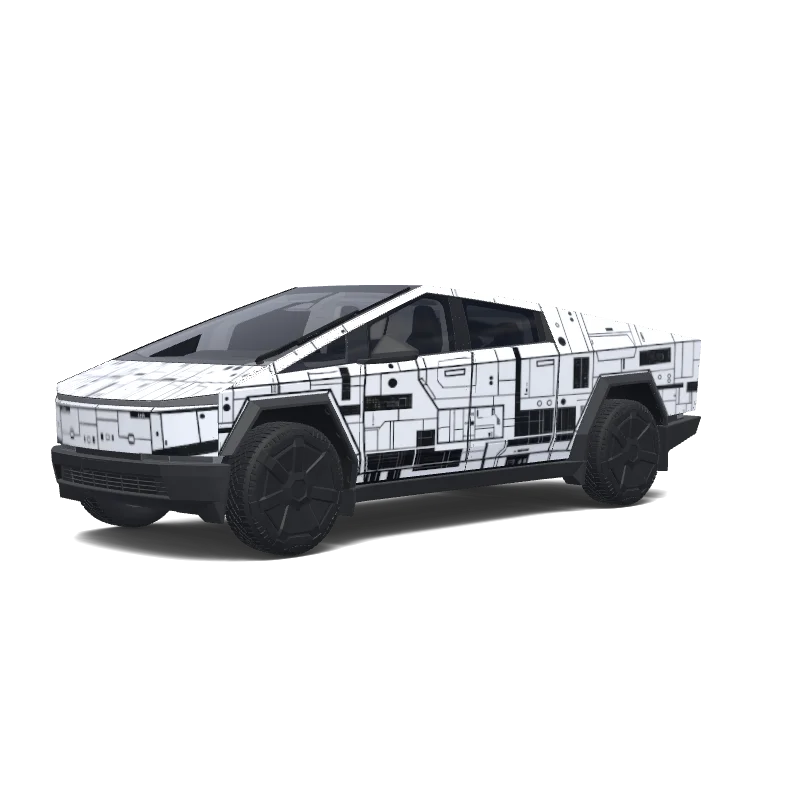
Broad light-dark areas give the angular vehicle a different rhythm from the orange concepts. Preview only: the stored source uses a square canvas and needs rebuilding on the proper template.
Inspiration preview only · source PNG does not match the Cybertruck template dimensionsStart on the matching blank template →| Direction | Community preview | Choose it when | Check first |
|---|---|---|---|
| Two-tone | Black-and-orange Cybertruck by Leonard Pringle | You want one large color field with a small number of accents. | Check whether the black-to-orange break still looks deliberate from the front and both sides. |
| Textured theme | Dark green obstacle-racing Cybertruck by Patrick Dowd | You want a rough, illustrated surface treatment to carry the theme. | View it at normal preview size; small texture marks can merge when the car is shown smaller. |
| Monochrome panels | White-and-black sci-fi Cybertruck by jeedaidc | You want a technical, high-contrast pattern across the body. | Inspect how dense linework meets doors and other panel boundaries. |
A two-tone idea makes color placement the main decision
The black-and-orange community preview puts a broad orange field across the side and uses black around the upper body and as angular accents. If you want a simpler wrap, begin with one dominant color and one accent. Before adding lettering or texture, rotate the Cybertruck preview and decide where the color break should stop on the front, doors, and rear. The goal is a clear division that still feels related from each view.
Use texture only where it helps the theme read
The dark green obstacle-racing example combines a green base with rocky texture and a wire motif. That gives the design a different feel from a plain color change, but it also adds more small detail. If you borrow this direction, keep the main motif recognizable at the editor’s normal viewing size and leave some quieter areas around it. The screenshot is a digital 3D preview; it does not establish a physical material finish.
Choose linework when you want a graphic rather than a color change
The black-and-white sci-fi example uses panel-like linework as the subject. A pattern this dense can compete with the Cybertruck’s own seams, so inspect it from the side and front before adding more marks. If you make an original version, pick one area to carry the strongest contrast and use simpler shapes nearby. This keeps the main idea visible without requiring every panel to be equally busy.
Open a Cybertruck preview before you export
The cases here are community previews, not a curated set of verified Cybertruck downloads. Open the Cybertruck gallery or editor to review current entries and work on the exact model. Tesla’s repository says to use the matching vehicle template and save wraps as PNG files within its published resolution and size limits. For the Cybertruck layout proportions, see the model-specific template guide; after editing, check the exported file rather than assuming a preview image is an installable PNG.
A Star Wars-inspired Cybertruck needs more than a theme label
The monochrome sci-fi community preview above uses light panel fields, dark borders and fine technical marks. It is useful when your interest in a Star Wars-style Cybertruck is a large mechanical surface rather than a character portrait. Judge it from the front and side at normal size: dense lines that look sharp on the flat sheet can merge on a small on-screen car. The selected source is square, so this particular preview is inspiration only, not a checked Cybertruck download. Use the rectangular Cybertruck template for a new version, and keep the existing preview-only label separate from any file you eventually export.
Questions before you export
What is a good Cybertruck wrap idea to start with?
Choose by the result you want: a two-tone color block for a restrained look, a textured theme for a more illustrated surface, or high-contrast linework for a technical graphic. Compare the full-car preview before adding fine detail.
Are these physical Cybertruck vinyl wraps?
No. They are community-created digital wrap previews for Tesla’s Paint Shop visualization. The previews do not show physical installation, material, or an installer’s work.
Can I use a wrap image made for another Tesla model?
Use the official template for the exact vehicle model. A file made for another model can place artwork on different panel regions; choose the matching editor and inspect the result before export.
Continue with your wrap
Sources and compatibility
File requirements and template selections are checked against the sources below. Original palettes and layout exercises are design suggestions, not official Tesla designs or vehicle test results. Your vehicle’s features and software determine final compatibility.